Images Are the Biggest Speed Killer
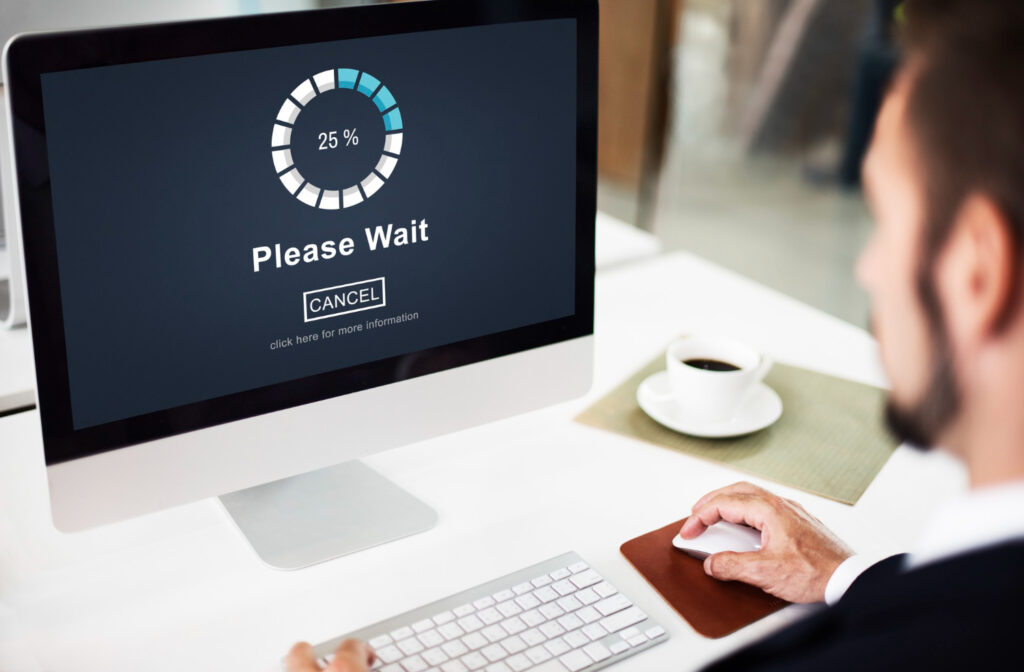
If your website loads slowly, images are almost certainly the cause. A single uncompressed photo from your phone can be 5 to 10MB. Put six of those on your homepage and you've got a page that takes eight seconds to load.
Forty percent of visitors leave a page that takes more than three seconds to load. That's almost half your audience gone before they even read a word.
The good news: image optimization is quick to learn and makes a massive difference.
Choose the Right File Format
Different image types serve different purposes:
- JPG: Best for photos. Good quality at small file sizes.
- PNG: Best for graphics, logos, and images that need a transparent background. Larger file size than JPG.
- WebP: A modern format that delivers smaller file sizes than JPG and PNG with similar quality. Supported by all modern browsers. This is what you should aim for.
- SVG: Vector format, perfect for logos and icons. Scales to any size without losing quality and is usually tiny in file size.
For most website images, use WebP or JPG. Avoid PNG unless you specifically need transparency.
Compress Before You Upload
Compression reduces file size without noticeably reducing quality. It's the single most impactful optimization step.
Free tools that work great:
- Squoosh (squoosh.app): Free, browser-based. Converts to WebP and compresses dramatically. You can see a live before/after comparison.
- TinyPNG / TinyJPG: Drag and drop. Compresses PNG and JPG files by up to 80%.
- ImageOptim (Mac only): Desktop app for bulk compression.
As a rule of thumb, most website images should be under 150KB. Hero images can go up to 300KB. Anything larger is too heavy.
Resize Images Before Uploading
A photo taken on a modern phone might be 4000 x 3000 pixels. Your website never displays images that large. Uploading full-resolution images and letting the browser scale them down is wasteful.
Resize your images to roughly the size they'll display on the page before uploading. A homepage banner image might need to be 1200 x 630 pixels. A blog post thumbnail might need 800 x 500 pixels. Check your theme's recommended sizes.
Always Add Alt Text
Alt text is the description you write for each image. It does two important things:
- It helps Google understand what the image shows, which helps with image SEO.
- It helps visually impaired visitors using screen readers understand your content.
Write descriptive alt text for every image. Not “image123.jpg” but “woman setting up her first WordPress website on a laptop.”
Use Lazy Loading
Lazy loading means images only load when a visitor scrolls to them. Instead of loading every image the moment someone lands on the page, only the visible images load first.
This can dramatically reduce initial page load time. WordPress adds lazy loading automatically to images. Most other platforms do too. Check that it's enabled on your site.
Use a Plugin on WordPress
If you're on WordPress, the Jetpack plugin includes image optimization tools that automatically compress and convert images to WebP when they're uploaded. It's free for the basic plan and saves you from manually optimizing every image. A simple install and your images are handled automatically going forward.
Test Your Speed
After optimizing, test your page speed with Google PageSpeed Insights (free). Enter your URL and it shows your score plus specific recommendations. Aim for 70 or above on mobile. Images are usually the first thing it flags if they're too large.